Business systems

Lead-to-job CRM demo

One clear system, from first enquiry to paid job.

This working demonstration shows how a service business can keep leads, customer details, quotes, jobs, messages and payments together—on a computer or from a phone.

Demonstration data only. The names, contact details and figures shown here are staged examples.

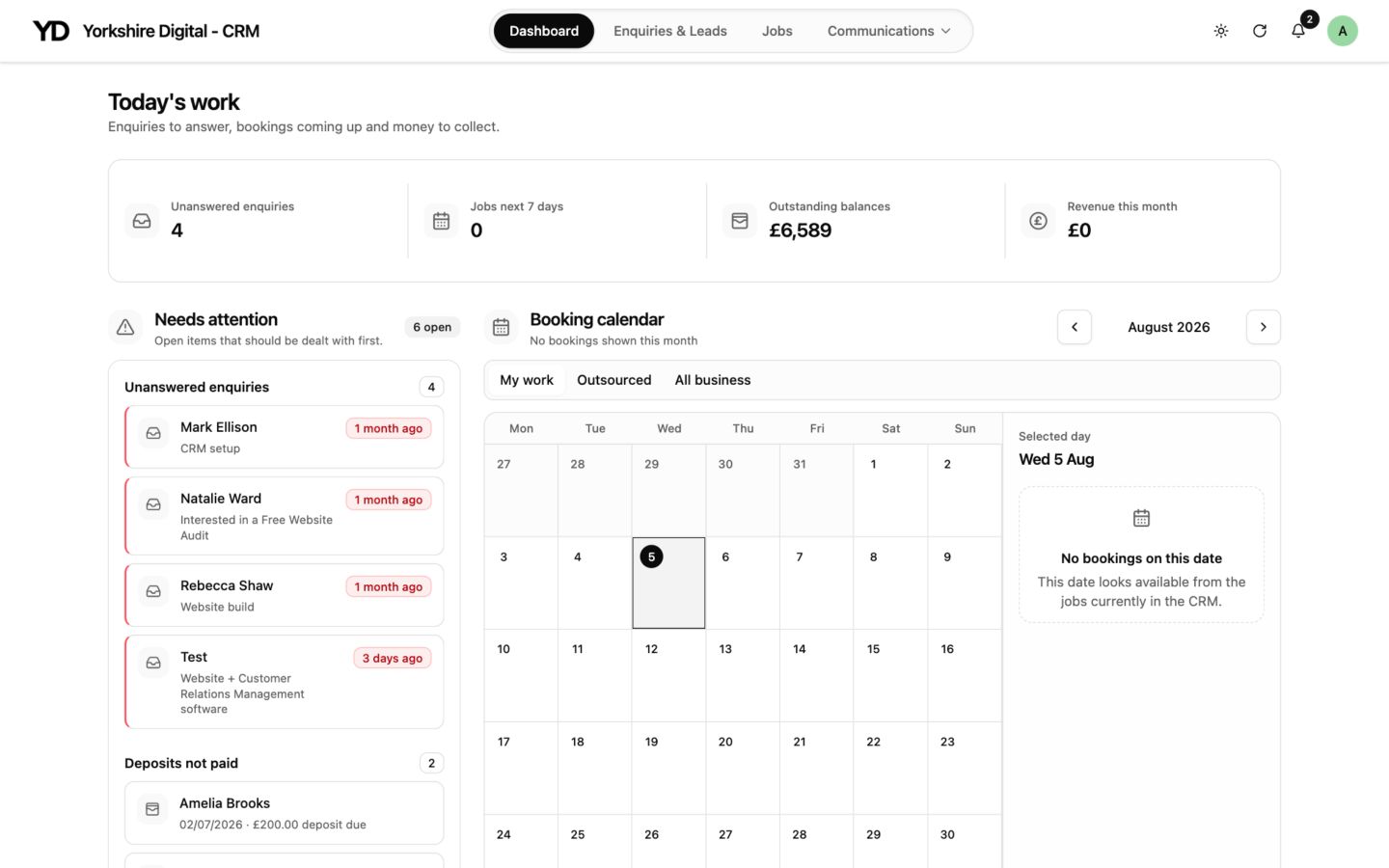
Yorkshire Digital CRM desktop dashboard showing enquiries requiring attention, balances and a booking calendar
The desktop dashboard brings urgent enquiries, money to collect and the booking calendar into one view.
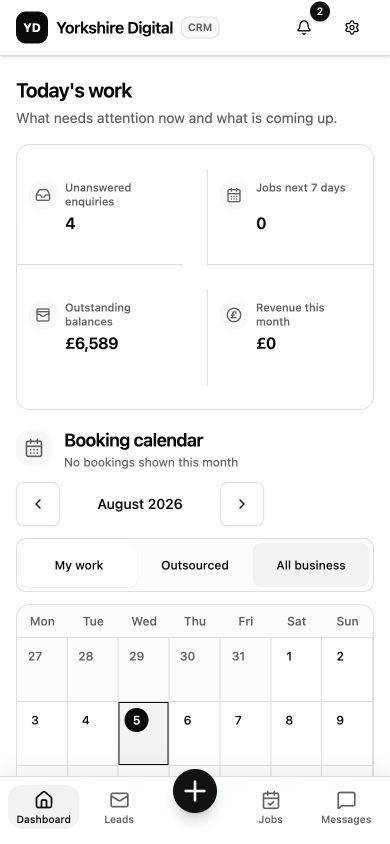
Mobile CRM dashboard showing today's work, key figures and booking calendar
The same working dashboard presented for a mobile phone.
Desktop + mobileDesigned around the same daily jobs
  1. 01Enquiry
  2. 02Follow-up
  3. 03Quote
  4. 04Job
  5. 05Payment

Inside the CRM

Made for the work between the enquiry and the invoice.

Most small businesses do not need a complicated sales platform. They need to know who is waiting for a reply, what has been quoted, which jobs are booked and what still needs paying.

These screens show one example. The stages, questions, messages and payment process can be fitted around the way a business already works.

01

Enquiries & leads

See every new lead—and what should happen next.

Website enquiries, referrals and manually added leads can sit in one list. Clear stages make it easier to separate new conversations from quotes, accepted work and enquiries that are waiting.

  • Filter by status or where the enquiry came from
  • Open the right record without searching old messages
  • Use the same core workflow on desktop and mobile
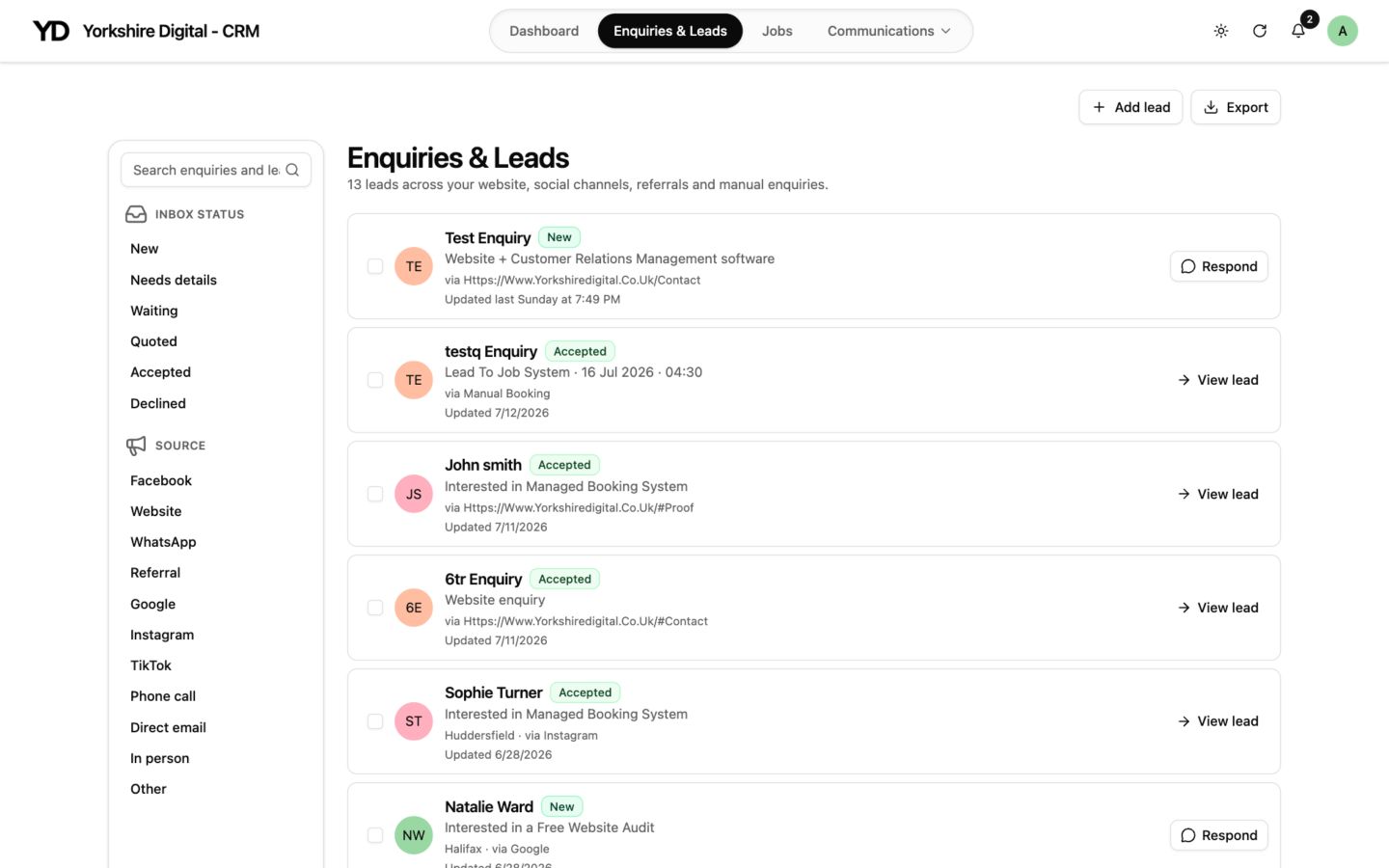
CRM desktop enquiries list with lead stages, sources and response actions
A searchable desktop list of enquiries and leads at different stages.
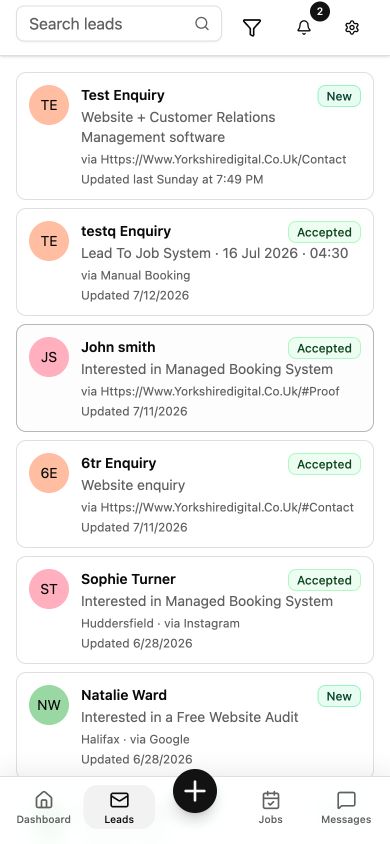
Mobile CRM leads list with search, status labels and bottom navigation
The lead list arranged for quick use on a mobile phone.
02

Customer record

Keep the details, quote and conversation together.

Open a lead and the useful context is already there: contact information, source, status, quote figures, terms, saved messages and internal notes. That means less copying between inboxes and spreadsheets.

  • Review the customer details before replying
  • Prepare a quote and deposit from the same record
  • Keep private notes separate from customer messages
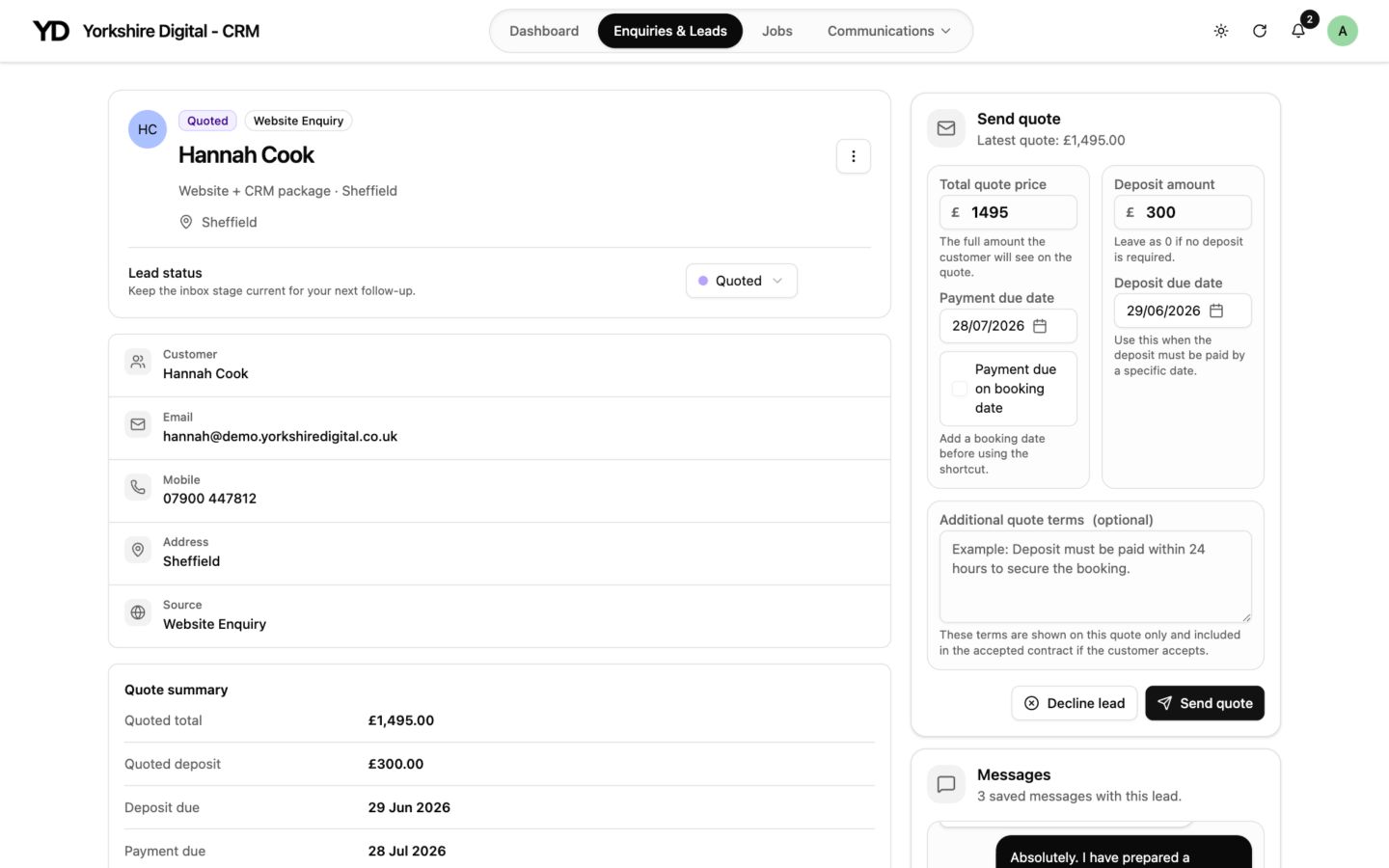
CRM desktop customer record with contact details, quote controls, payment dates and messages
A complete lead record with customer information, quote controls and messages.
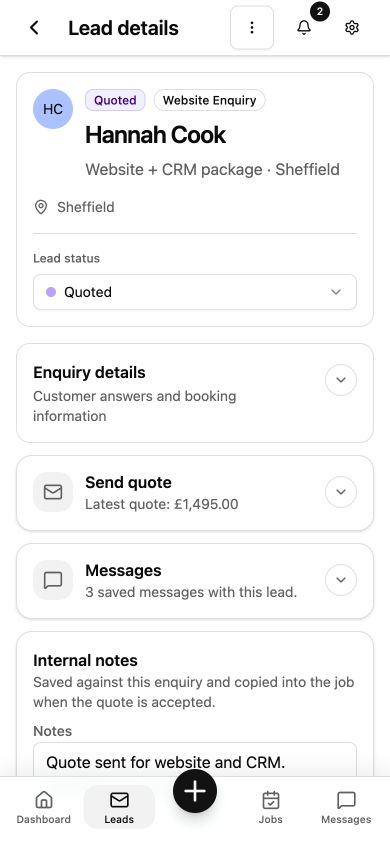
Mobile CRM lead details screen with enquiry details, quote, messages and internal notes
The customer record condensed into expandable mobile sections.
03

Jobs & payments

Turn accepted work into a job you can keep track of.

Once work is booked, the job view keeps the practical information visible. Upcoming work, deposit status and outstanding balances can be checked without piecing the story together again.

  • Separate upcoming work, payment follow-ups and history
  • See deposit and remaining balance information clearly
  • Check job information away from the desk
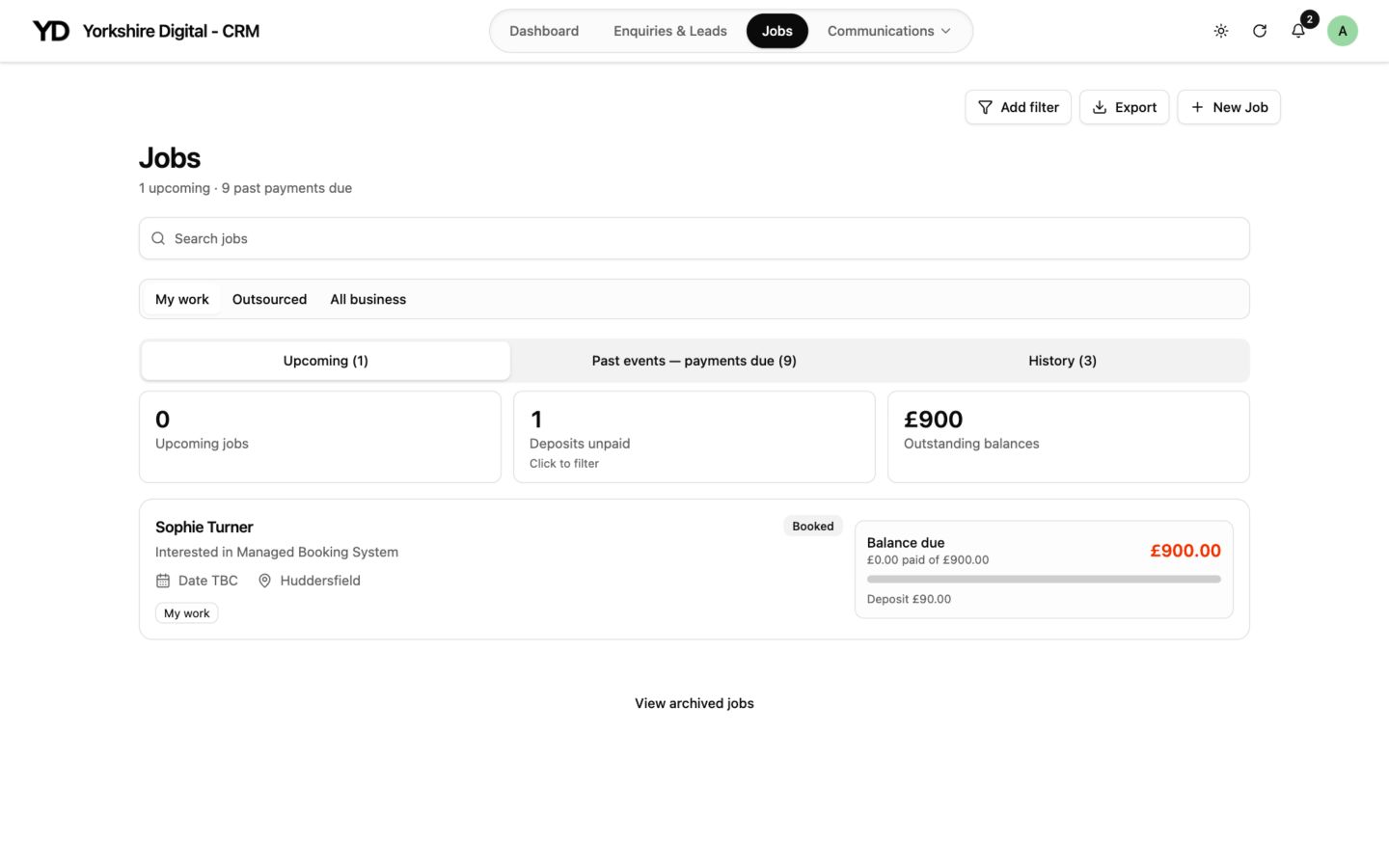
CRM desktop jobs screen showing upcoming work, deposits and an outstanding balance
The desktop jobs view separates upcoming work, overdue payments and history.
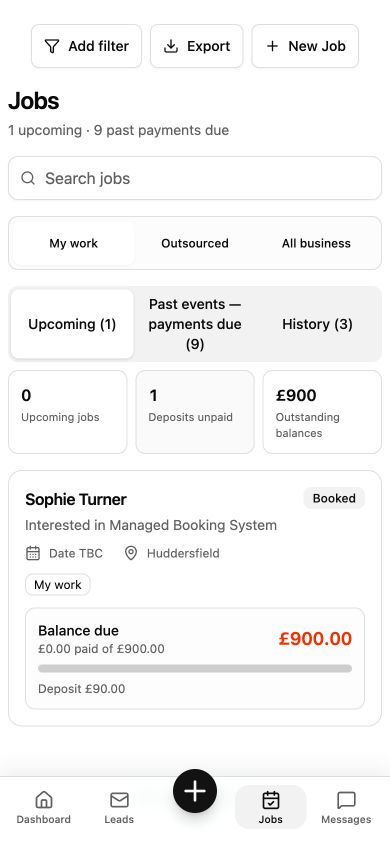
Mobile CRM jobs screen showing a booked job and outstanding balance
A mobile job card with booking and balance details.

Customer view

The customer-facing side stays just as clear.

Branded emails lead into straightforward customer pages where people can review the details, accept the terms and pay securely. Once booked, their portal keeps the latest information, payments, documents and messages together.

Customer portal

Everything for the booking, without another app to learn.

The customer can return to one branded page to check their booking, see what has been paid, settle a balance, find contracts and invoices, or read the latest messages.

  • Booking details and live payment status
  • Contracts, invoices and receipts
  • Messages kept with the booking
Desktop customer portal showing confirmed booking details, payment status, balance options and documents
The desktop customer portal keeps booking information, payments and documents on one page.
Mobile customer portal showing invoices, documents and a customer message thread
Invoices, documents and messages remain easy to reach from the customer portal on a phone.

How customers get there

From quote to confirmed booking.

Each step has one clear job, so the customer always knows what they are reviewing and what happens next.

01

Start the conversation

Quote email

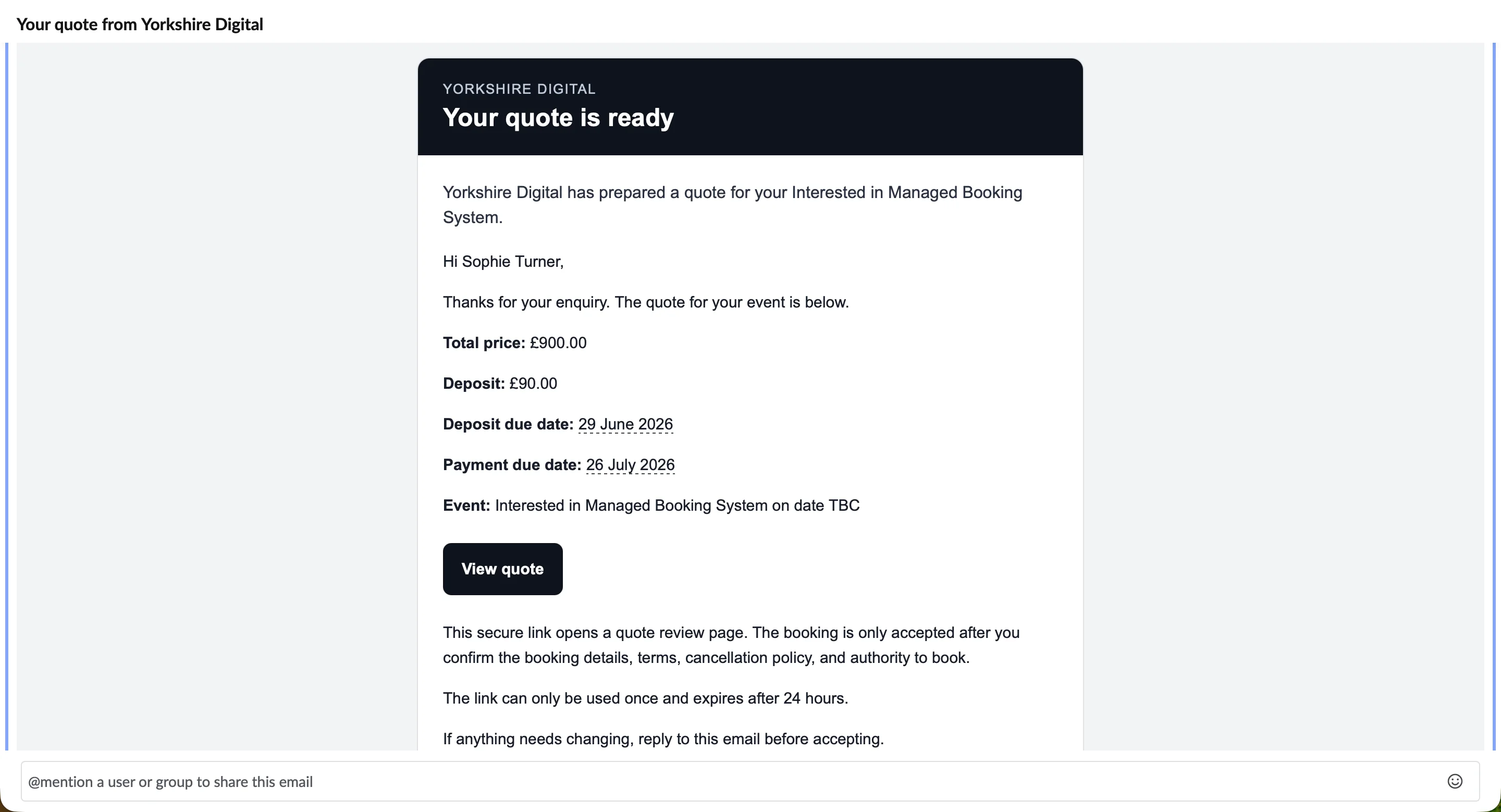
A clear email brings the price and next action together.
Branded customer quote email with booking summary and review button
A branded quote email sent to the customer.
02

Check the details

Review & accept

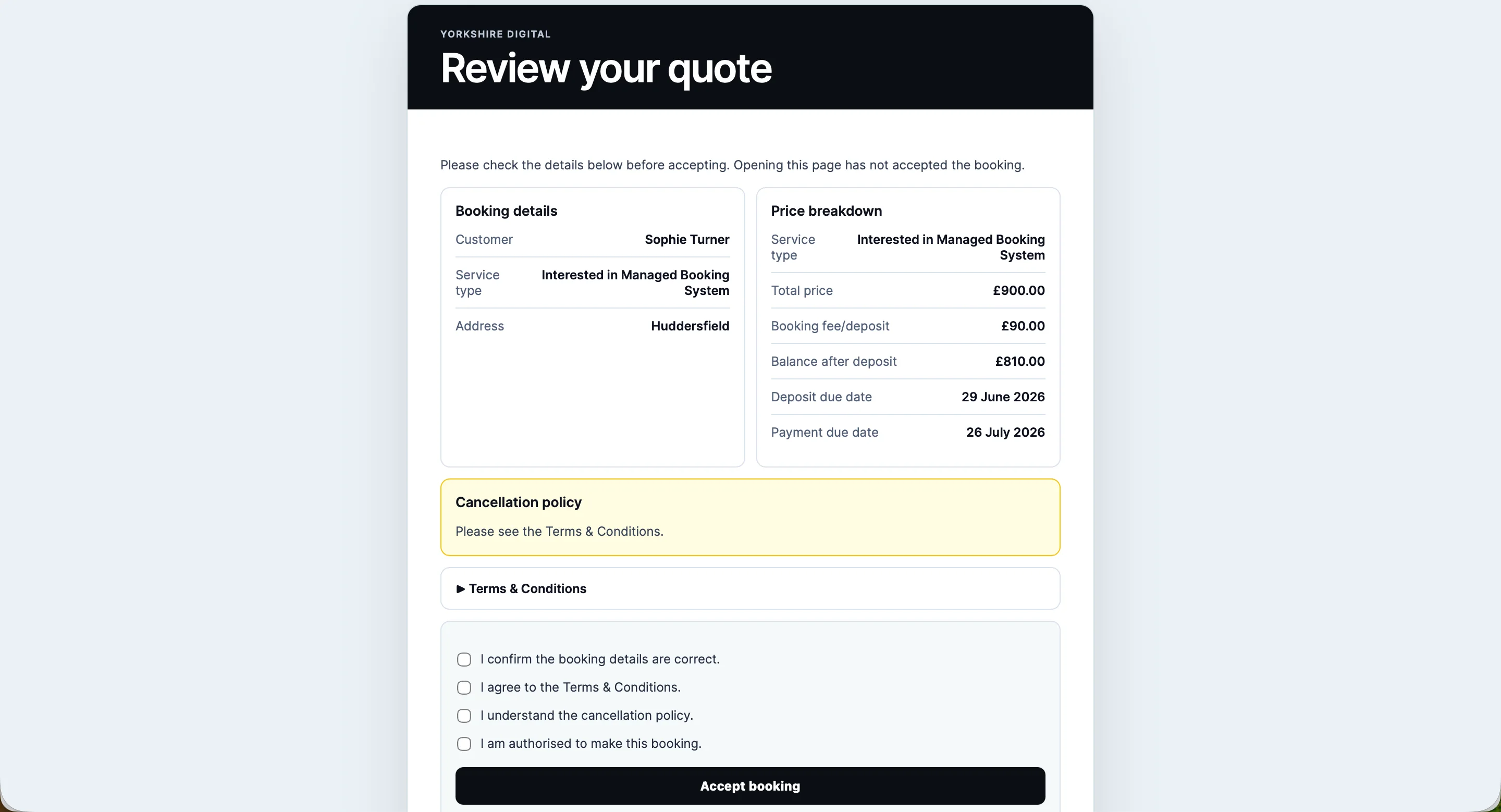
The customer can review the booking, price, terms and confirmations before accepting.
Customer quote review page with booking details, price breakdown, terms and acceptance checks
The customer reviews and accepts the quote online.
03

Confirm the booking

Booking accepted

A simple confirmation gives the customer their contract and the next payment choice.
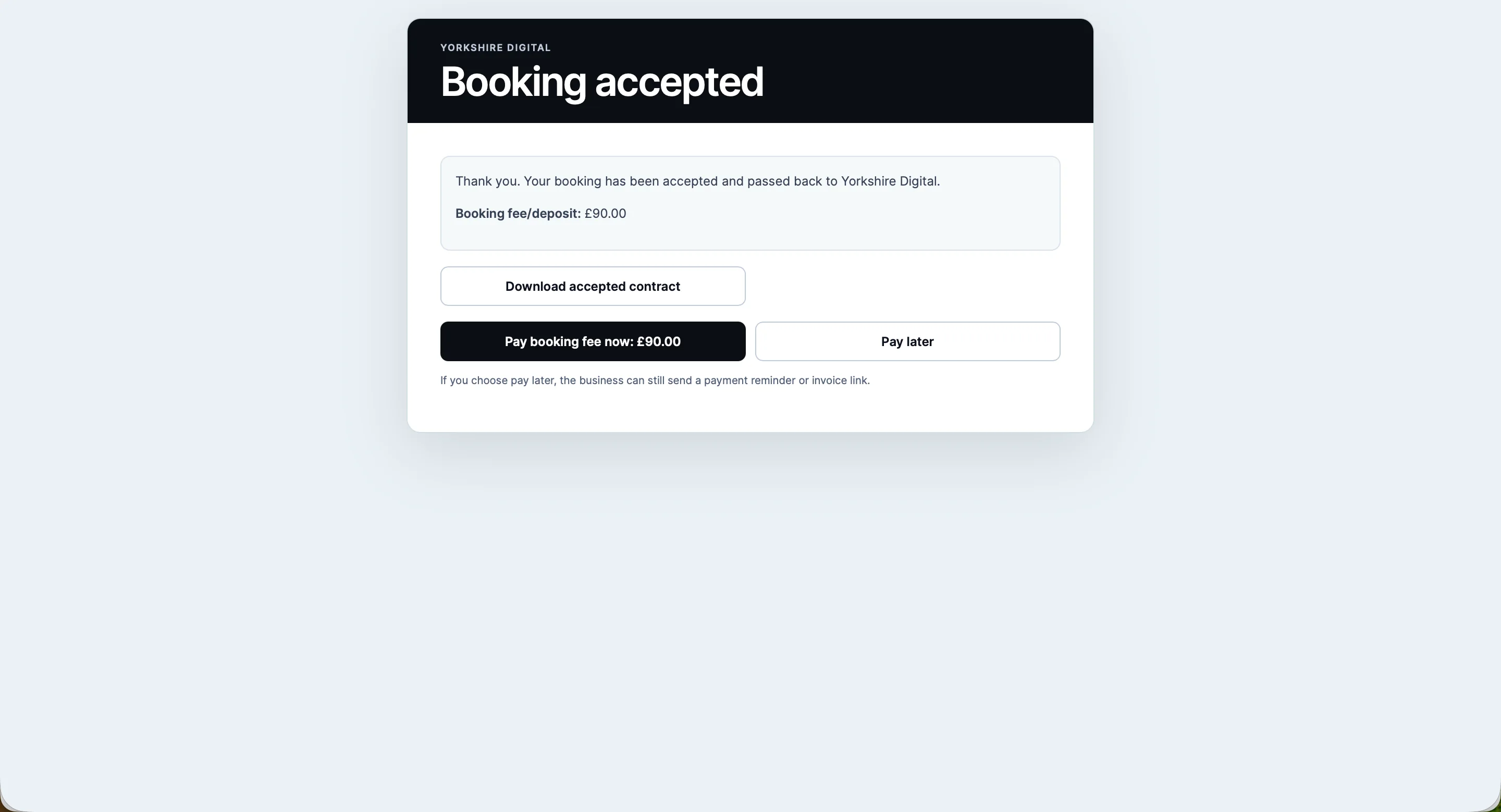
Customer booking accepted page with contract download and deposit payment options
The accepted booking page confirms what happens next.
04

Complete the next step

Secure payment

Deposits and balances can use a familiar checkout when online payment suits the job.
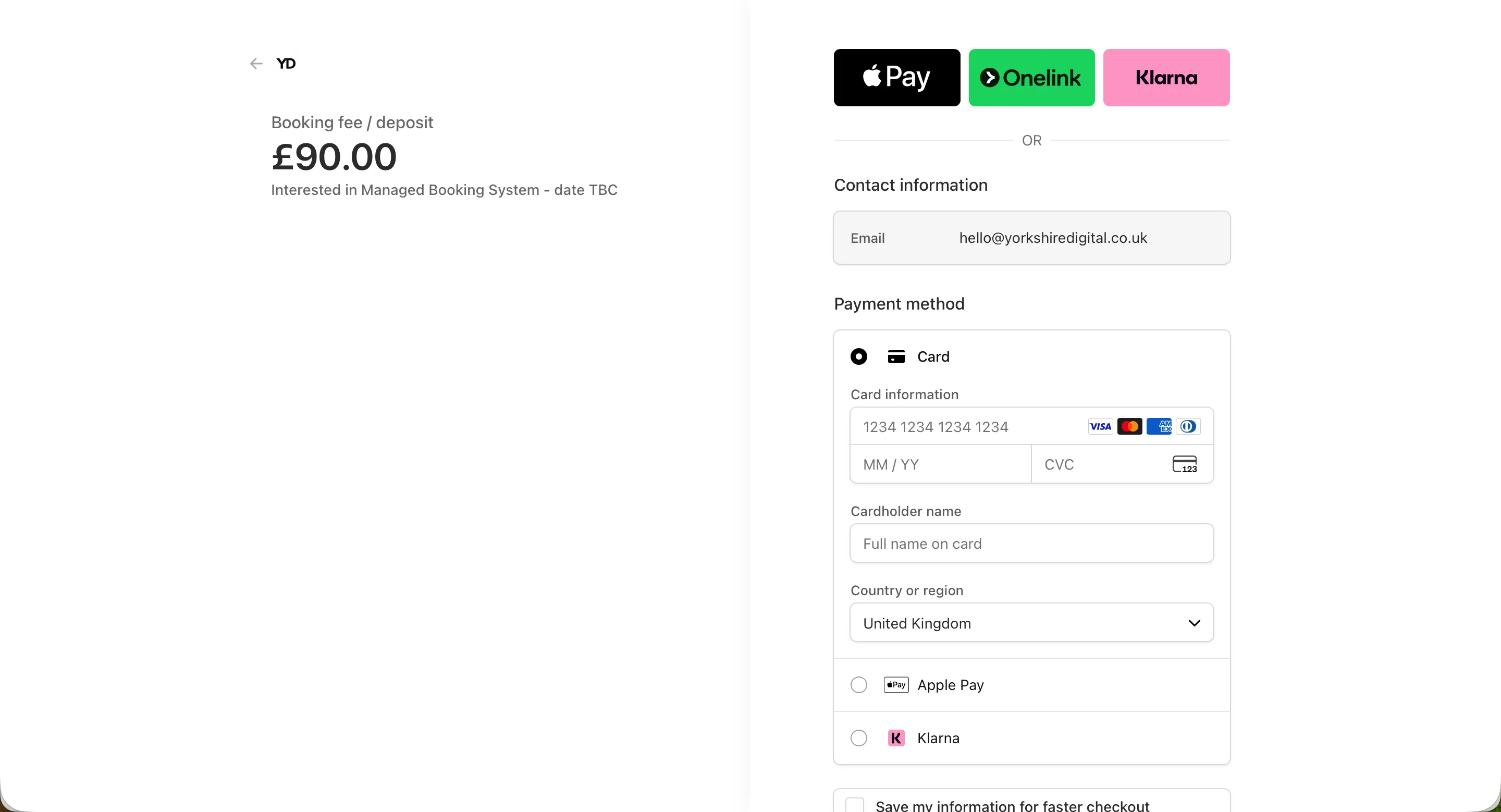
Secure customer checkout page for paying a booking deposit
The customer completes a deposit payment through a secure checkout.

Built around your business

Where does your current process get messy?

Tell me how enquiries, quotes and bookings are handled now. I will explain what could be connected, what should stay simple and whether a system like this is the right fit.